Export Image
Turn what is on the canvas into a figure you can submit: a true capture of the map you are looking at, or a redrawn publication map, sized the way a journal specifies it.
| Reached by | Export → Image |
| Writes | PNG SVG PDF, and the clipboard |
| Sample project | Graph tracks |
What it does
Journals do not ask for a picture; they ask for a figure of a stated width at a stated resolution, preferably in a format that has not been flattened to pixels. This panel produces exactly that from the plasmid you have open, in two modes that answer two different needs.
Captured rasterises the live view — the circular, linear or sequence map exactly as it is on screen, with the features you have toggled on, the labels where the editor placed them, the tracks you added. Use it when the point of the figure is what you are looking at.
Rendered map redraws the plasmid as a clean publication map from the record's own features and cut sites: a feature ring, labels, an optional restriction-site ring, a title. It ignores your current zoom, rotation and panel state, so the same record always produces the same figure. Use it when the point is the construct, not the session.
Both modes write PNG, SVG and the clipboard; the rendered map also writes PDF.
When you'd use this
You have finished a construct and need a panel for a figure, a slide, a thesis chapter or a lab notebook entry. The usual route is: build or verify the plasmid → turn on the tracks that carry your point (features, cut sites, a GC ring) → open Export → Image → choose the print size your journal specifies → export PDF for submission and PNG for the slide.
If you need the sequence rather than a picture of it, that is Export → the sequence formats, not this panel. If you want a figure of a gel, a tree or a trace, each of those canvases exports itself.
Print size: say it the way the journal says it
Set Size to Print size and the panel takes a physical width and a resolution instead of a pixel count, then shows you the pixels it derives. This is the same arithmetic you would otherwise do by hand, and it is where the wrong number usually comes from.
The presets are the widths the major publishers state:
| Preset | Width | Where it comes from |
|---|---|---|
| Nature single column | 89 mm | Nature's standard figure sizes |
| Nature 1.5 column | 136 mm | Nature's intermediate width (120 mm is also accepted) |
| Nature double column | 183 mm | Nature's full text width |
| PLOS maximum width | 190.5 mm | PLOS's stated maximum of 7.5 inches |
Resolution offers 300, 600 and 1200 dpi. 300 dpi is the minimum most publishers accept for images; 600 dpi is the top of PLOS's stated range; 1200 dpi belongs to line art, which is what a plasmid map is. The readout under the controls does the conversion for you — 89 mm at 300 dpi is 1,051 × 1,051 px — and says so before you export, so the file you hand over is the size you were asked for.
Two things worth knowing:
- The resolution only affects the PNG. SVG and PDF are vector: they have no pixels to count, and they print at whatever resolution the press runs at. Choosing 1200 dpi to "improve" a PDF only makes the PNG larger.
- Very large rasters are capped, and the panel tells you when the cap bites rather than quietly handing you a smaller image than you asked for.
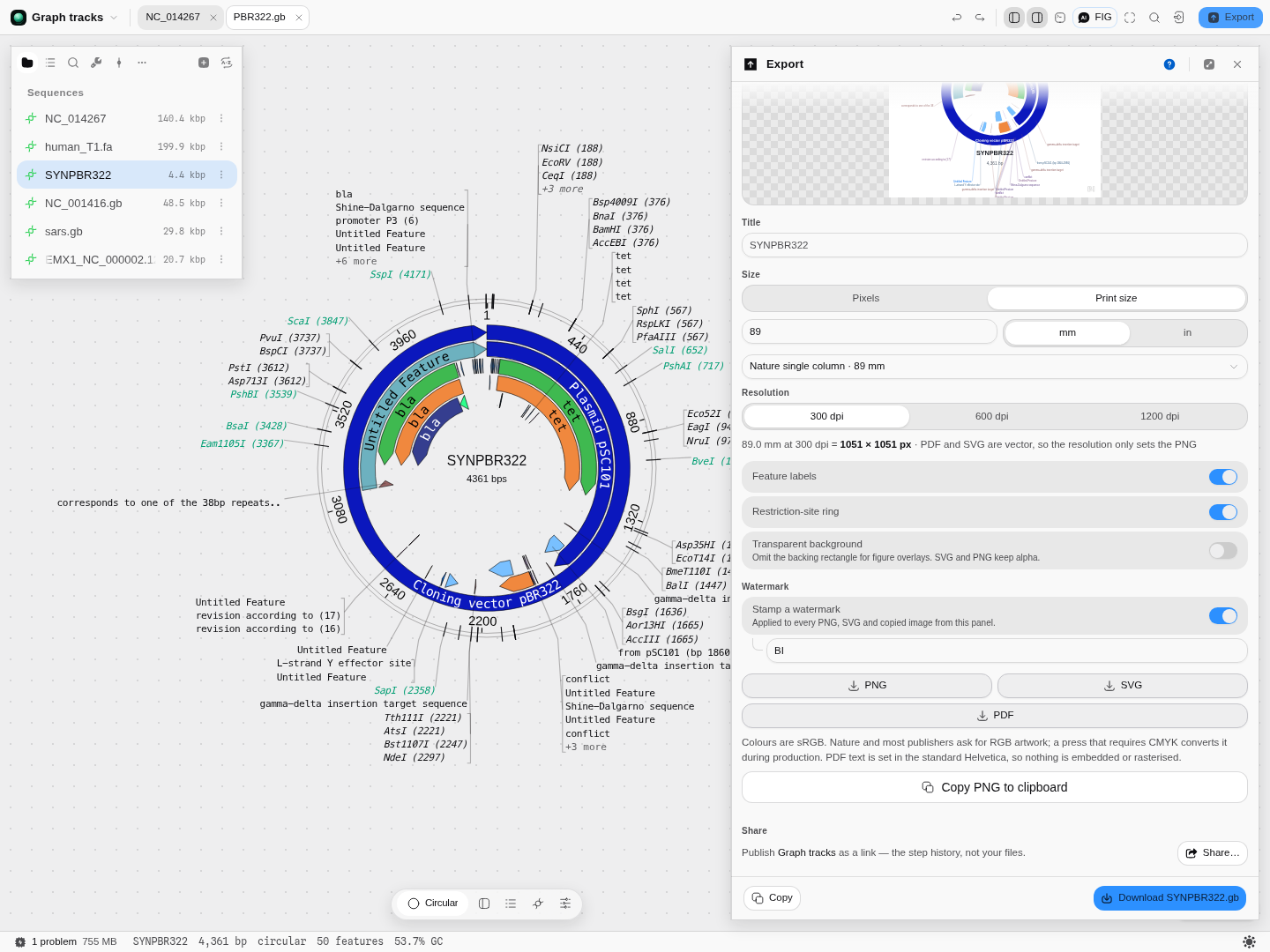 Print size mode: a physical width and a resolution in, the pixel count and the file out.
Vector, and what "vector" actually gets you
Several submission systems reject SVG, so the rendered map also exports PDF. It is real vector artwork: the arcs are paths, the text is text — selectable, searchable and unflattened, which is what "supply editable vector artwork" in an author guide is asking for. The page itself is cut to the physical size you chose, so a 89 mm figure arrives as an 89 mm page rather than something a production editor has to rescale.
The one honest limit: PDF text is set in the standard Helvetica that every reader already has, rather than the exact face you see on screen. Nothing is embedded and nothing is rasterised, and at figure sizes the difference is a slightly different sans-serif.
Captured mode has no PDF, deliberately. What it captures is a picture of the live canvas, so a PDF of it would be pixels inside a PDF wrapper — the page size would be right and the content would still be a raster claiming to be vector artwork. If you need vector, use the rendered map.
EPS is not offered. If a journal takes EPS only, convert the PDF with the tooling they recommend.
Colour
Exports are sRGB, and the panel says so rather than converting silently. This is not a gap: most publishers, Nature included, ask for RGB artwork and convert to CMYK themselves during production. If your press requires a CMYK proof, generate it from the PDF at that stage — a conversion done here, without your press's colour profile, would change your colours to no one's specification.
What this computes
This surface computes a figure rather than a measurement, so what it derives is geometry and file size — and it shows every derivation instead of applying it silently.
- Pixel dimensions from a physical width and a resolution. Give it 89 mm at 300 dpi and it reports 1,051 × 1,051 px before you export, which is the arithmetic the wrong number usually comes from
- Publisher figure widths as presets, from each publisher's own stated sizes: Nature single column 89 mm, 1.5 column 136 mm (120 mm also accepted), double column 183 mm; PLOS maximum 190.5 mm
- Resolution applied to the PNG only, and the panel says so — SVG and PDF are vector and have no pixels to count, so raising dpi to "improve" a PDF only makes the PNG bigger
- A raster cap that announces itself rather than quietly handing back a smaller image than asked
- Legend placement by measured overlap: the editor measures the label rows it actually drew and the rings, then puts the legend where it covers the least of them. On pBR322 that covers about a fifth fewer labels than a fixed top-right default — a measurement, not a preference
- Colour space stated, never converted: exports are sRGB, because most publishers ask for RGB and convert to CMYK themselves with their own press profile
What it produces: a PNG at the derived pixel size, an SVG, and a PDF whose page is cut to the physical width you chose and whose arcs are paths and whose text is text — selectable, searchable, unflattened, which is what "supply editable vector artwork" is asking for.
What it does not produce: a PDF in captured mode, deliberately — a capture is pixels, and wrapping them in a PDF would be a raster claiming to be vector artwork. No EPS. No embedded fonts in the PDF: text is set in standard Helvetica rather than the exact face on screen, and nothing is rasterised.
Controls
| Control | What it changes |
|---|---|
| Captured / Rendered map | Whether the figure is a raster of the live view or a redrawn publication map |
| Title | The name printed on the rendered map; defaults to the record's own name |
| Size: Pixels | A square pixel preset, 800 up to 8000 |
| Size: Print size | A physical width (mm or inches) plus a resolution, with the derived pixels shown |
| Journal preset | Fills the width from a publisher's stated figure width |
| Resolution | 300 / 600 / 1200 dpi — sets the PNG's pixel count, nothing else |
| PNG scale | Supersamples the raster in pixel mode, for a crisper PNG at the same nominal size |
| Feature labels | Draws feature names on the rendered map |
| Restriction-site ring | Draws the cut-site ring and its enzyme names |
| Transparent background | Omits the backing rectangle so the figure can sit on a coloured panel; SVG and PNG keep the alpha |
| Background (captured) | Transparent, white, or the editor's own background |
| Include zoom / minimap controls (captured) | Keeps the view's on-screen chrome in the image; off by default, because it is interface, not data |
| Watermark | Stamps text on every PNG, SVG and copied image from the panel |
Where the legend goes
If you add a legend to the map, it is placed for you rather than dropped in a fixed corner: the editor measures the label rows it actually drew and the rings themselves, then puts the legend where it covers the least of them — a corner, an edge, wherever is genuinely clearest on that molecule. On real pBR322 that is a measurable difference rather than a matter of taste: every corner of that map carries labels, and the chosen position covers about a fifth less of them than the old top-right default did.
The legend is part of the figure, not part of the interface: it is saved with the record and it exports with the image. If you only want to read the colours while you work, use the canvas colour key instead and leave the map clean.
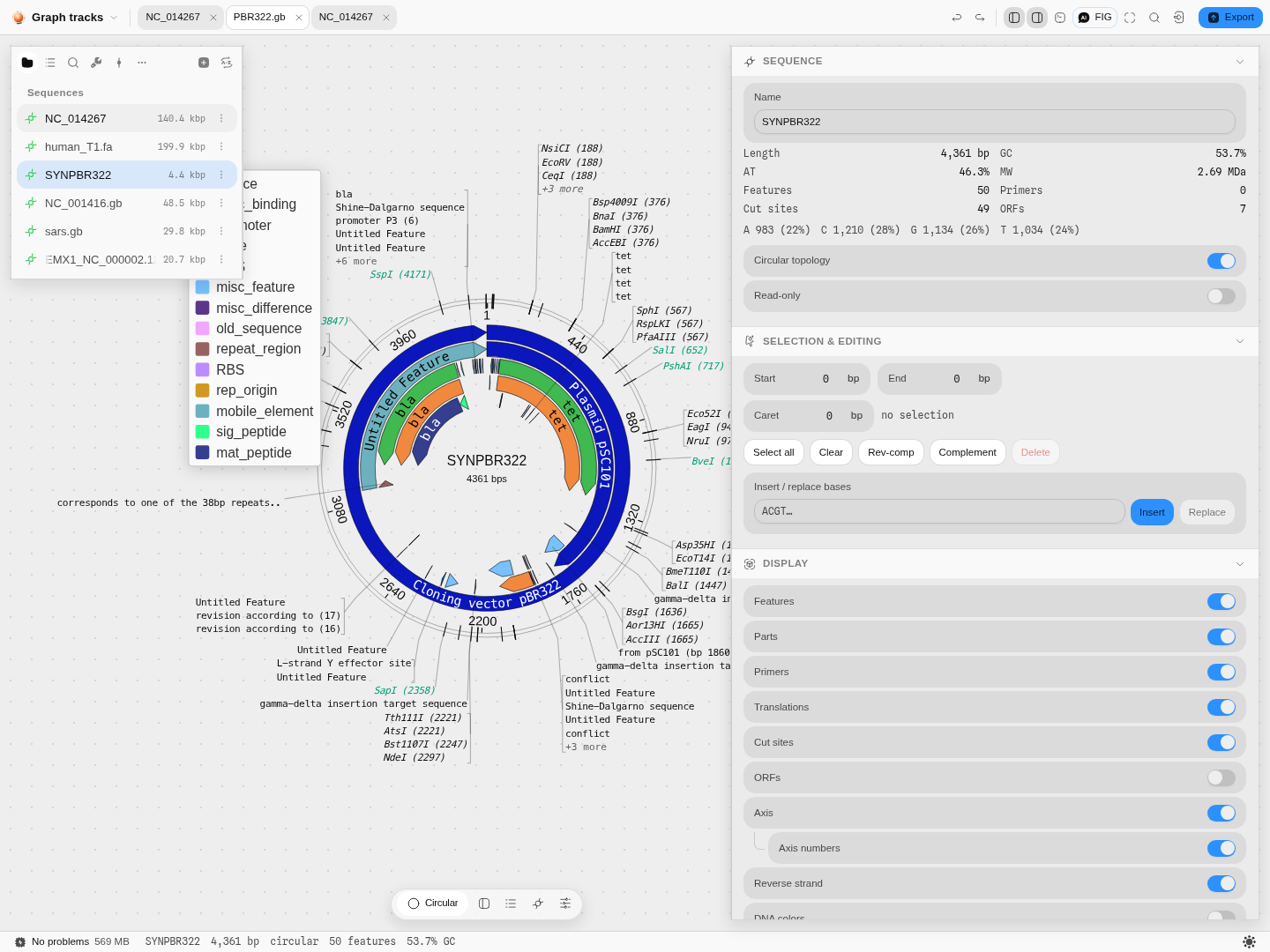 The legend lands where it hides the least of the map.
Worked example
Open the Graph tracks sample and focus PBR322.gb — a real 4,361 bp pBR322 with 50 features and
49 cut sites.
- Open Export → Image and switch to Rendered map. The preview redraws the plasmid.
- Set Size to Print size, choose Nature single column · 89 mm and leave the resolution at 300 dpi. The readout reads 89.0 mm at 300 dpi = 1051 × 1051 px.
- Export PDF. The page is 89 mm square, the arcs are paths and the enzyme names are selectable text.
- Export PNG for the same figure at 1,051 px, then switch the resolution to 600 dpi and export again: the page size in the PDF does not change, the PNG doubles to 2,102 px.
Limits
- The rendered map draws a square figure, so one physical dimension sets both.
- Captured mode captures what is on screen: if a track is toggled off, or a label did not fit, it will not be in the image either. That is the point of the mode, but it means the figure inherits your current view.
- A very large raster is capped, and the panel says the width it actually produced.