
| Document kind | pdf |
| Drawn from | a file — it can also be previewed in the file manager |
| Formats that open here | PDF (.pdf) |
| Refuses to draw below | 220px wide |
What it draws
The document itself, a page at a time — the real pages, with their figures, tables and typography, rasterised in your browser.
A PDF is a paginated document, and that shapes the whole view: the canvas draws one page and the page number is a control rather than a scroll position. That is not a limitation dressed up as a choice — rendering every page of a long paper into the view at once is how a PDF reader turns into a memory problem, and it buys nothing a page control does not give you.
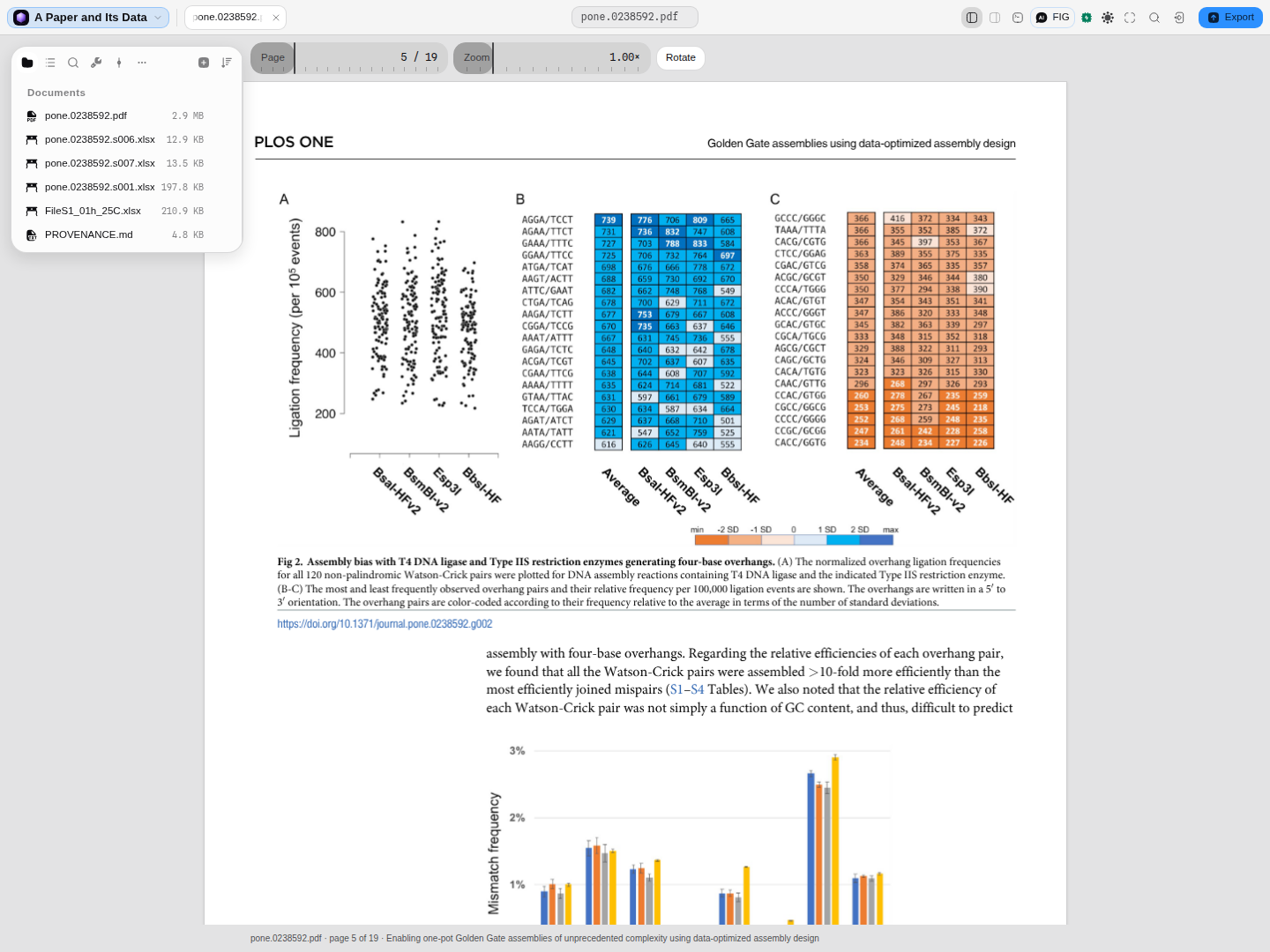 Page 5 of a PLOS ONE study, open in the project that also holds the supplementary tables this figure is drawn from.
Getting to a page
Three ways, and they are three different questions.
You know the number. The Page control takes it.
You know what the page looks like. The page strip down the left draws every page small, in order. A paper's figure pages, its table pages and its reference list are recognisable at that size long before the text is, which is how most people actually navigate a document they have read once — click the thumbnail and the canvas goes there.
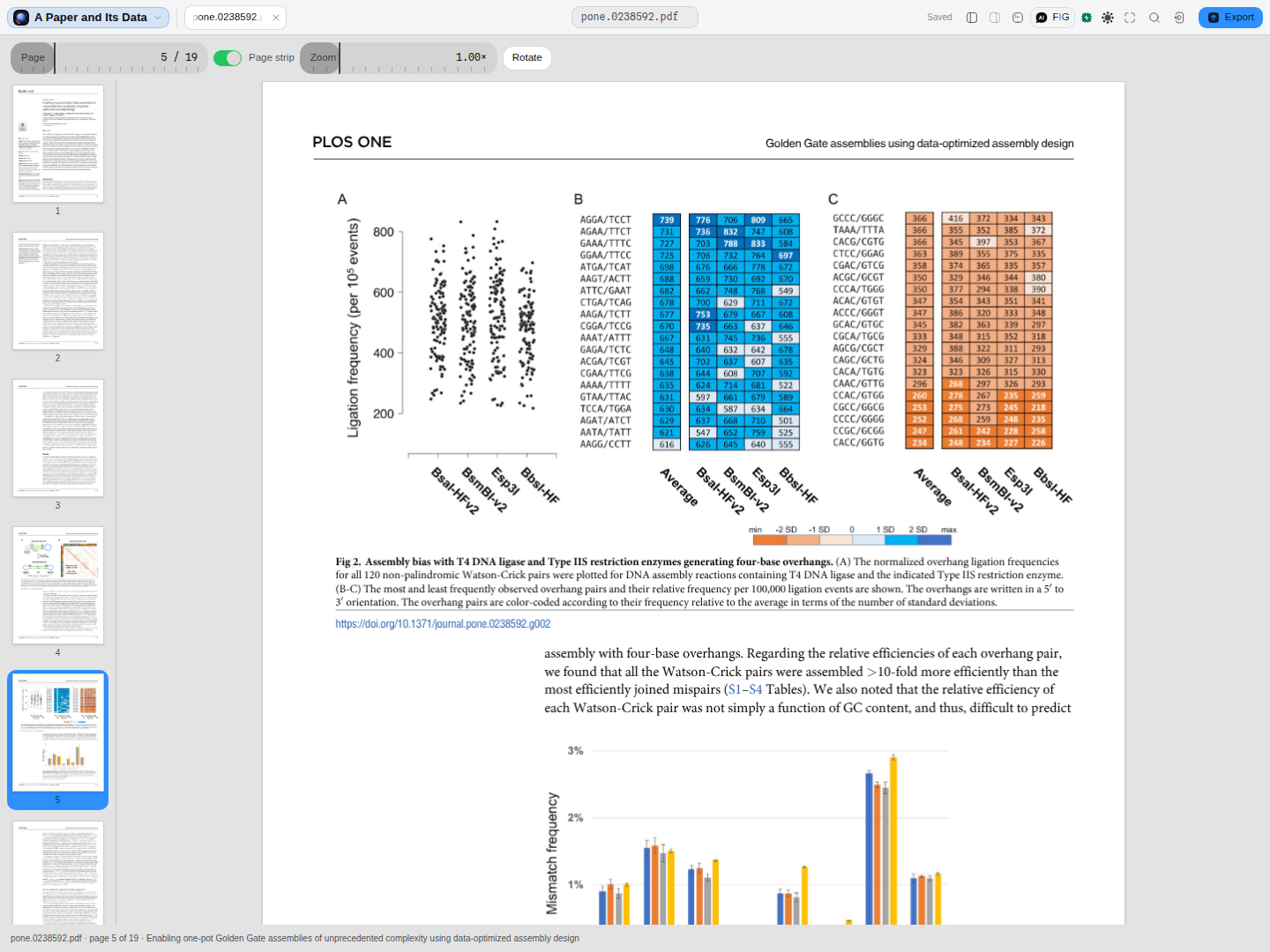 Every page of the study drawn small down the left; the page on the canvas is the highlighted one. Clicking a thumbnail jumps to it.
You know what the section is called. If the document carries its own bookmarks, a Section control appears beside Page, listing them in the document's own order and nesting, and picking one jumps to the page it points at. It also tells you where you are: the control names the last bookmark at or before the page you are on, and stays blank while you are ahead of the first one. If the document carries no bookmarks the control is simply absent — nothing is invented to fill it, and most journal PDFs carry none at all, so the bundled example that shows this off is a reference manual rather than a paper. A bookmark that points at something we cannot resolve to a page stays visible and says so, rather than quietly sending you to page 1.
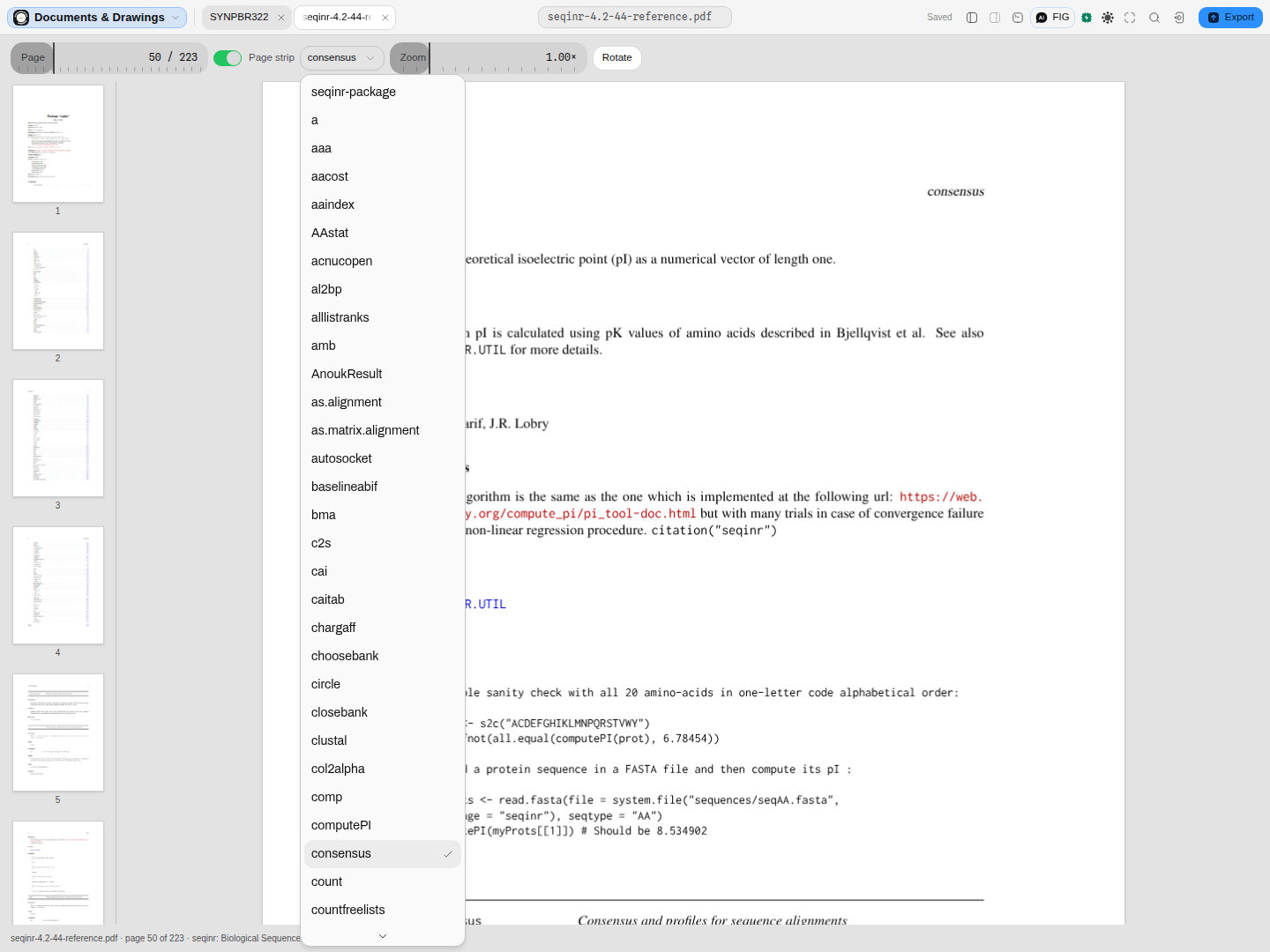 All 142 bookmarks of the seqinr reference manual, in the document's own order. The one ticked is the section page 50 falls in, and the page strip is still there to jump by shape instead.
What opens in it
Any .pdf. The format is detected from the file's own %PDF- header rather than its name, so a
mislabelled file still routes correctly and a file that only claims to be a PDF is refused with
that reason instead of drawing an empty page.
What this computes
No scientific quantity — a PDF is a finished document and this canvas renders it, it does not interpret it. Pages are drawn by the same reader Mozilla builds and ships inside Firefox, which is the reference implementation of the format in practice, so a document that renders correctly there renders correctly here.
What it computes is what is needed to navigate a paginated document, and in two places the answer it computes is deliberately a refusal:
- Whether the file is a PDF at all, from its own
%PDF-header rather than its name — so a mislabelled file routes correctly, and a file that only claims to be a PDF is refused with that reason instead of drawing an empty page. - Page count, and a thumbnail of every page for the strip down the left. A paper's figure pages, table pages and reference list are recognisable at that size long before the text is.
- The document's own bookmark outline, in its own order and nesting, when it carries one — and which bookmark you are currently inside, computed as the last one at or before the page you are on, staying blank while you are ahead of the first. If the document carries no bookmarks the control is absent: nothing is invented to fill it, and most journal PDFs carry none. A bookmark pointing at something that cannot be resolved to a page stays visible and says so rather than quietly sending you to page 1.
- Search hits reported by page, because that is the honest unit. A PDF stores positioned glyphs, so "character 4,120 of the document" would be a number this application invented.
Reading it
- Zoom re-renders; it does not stretch. Asking for 2× re-rasterises the page at twice the size, so the text and the vector art stay sharp. This matters more than it sounds: the usual reason to zoom into a paper is to read a gel lane or an axis label, and a stretched bitmap is exactly where that fails.
- 1× means "the page fits", not 72 dpi. Opening a document shows you a whole page, which is what a reader expects; the zoom control then moves relative to that.
- The text is selectable. An invisible, correctly positioned copy of the page's text sits over the drawing, so you can select and copy a gene name, an accession or a primer sequence straight out of the paper. The canvas underneath is what you read; the layer is what you select.
- What the document says about itself is shown, not guessed. Title, author, PDF version and producing application come from the file's own metadata, and a document that declares none simply shows fewer rows rather than inventing them.
Controls
| Control | What it does |
|---|---|
| Page | Which page to draw. Disabled, with that reason, on a single-page document. |
| Page strip | Shows or hides the thumbnail strip. Disabled on a single-page document. |
| Section | Jumps to a bookmark from the document's own outline. Present only when the document has one. |
| Zoom | Re-renders the page between 0.25× and 4×. |
| Rotate | Turns the page 90° clockwise — for a landscape figure, or a page scanned sideways. |
| Select text | Not a control — drag across the page. The text layer is always present. |
Page, Section, Zoom and Rotate survive into the read-only preview: they change how the document is read, and none of them writes to it. The page strip does not — a 380px preview aside has room for the page or for a strip beside it, not both.
What you can take out of it
| What you get | What is in it |
|---|---|
| Text | The text of every page, in the order the document stores it, one blank line between pages |
| Outline | The bookmarks the document declares, each with its depth in the tree and the page it resolves to |
The text is reading order, not layout, and that is a real limitation rather than a caveat: a two-column page interleaves its columns, a table comes out as a run of values with no rows, and figures are absent entirely. It is the right export for searching, quoting and feeding a document into something else, and the wrong one for reconstructing the page.
A bookmark whose destination cannot be resolved is written with no page rather than defaulted to page 1 — a wrong page is worse than an honest gap. A document that declares no bookmarks says so instead of producing an empty file.
Where it appears
As a stage tab, and in the file manager preview. Both use the same renderer, so a paper reads the same way whichever door you came through. In the preview the box is canvas only — the controls and the page/title rows are published upward and drawn by the host around it.
Performance and limits
- Parsing and rasterising happen off the main thread, in a worker, so turning pages in a long document does not freeze the rest of the workbench.
- One page is rendered at full size, whichever one you are reading. Page count and metadata come from the document's cross-reference table, which is cheap even for a large scan.
- The strip's thumbnails are drawn one after another, not all at once, and they fill in behind whatever you are reading rather than making you wait for them. There is no cap on how many: a navigation control that silently stops at page 50 would be worse than no strip. The longest bundled document is 223 pages, which is what that is measured against.
- Rotating re-draws the strip too, so a sideways scan does not leave you picking from thumbnails in the old orientation.
- Documents over 128 MB are refused rather than loaded, with the size stated.
- Project search reads the first 40 pages. A longer document says so rather than reporting "no match" for a term that might be on page 200.
Provenance of correctness
Pages are drawn by the same reader Mozilla builds and ships inside Firefox, which is the reference implementation of the format in practice. A page here is the page that reader shows: fonts resolve the same way, and a document that renders correctly in Firefox renders correctly here.
Finding things in it
A PDF's text is searched with the rest of the project, so Search finds a term in a paper the
same way it finds it in a sequence or a table. A hit reports the page rather than a character
offset, because that is the honest unit — a PDF stores positioned glyphs, so "character 4,120 of the
document" would be a number this app invented — and the page is what the viewer's Page control
takes. Searching the bundled study for BsaI returns thirteen hits, each with the sentence it sits
in.
Related
A PDF in a project is usually the paper or protocol the rest of the project came from. The bundled example is exactly that: a published Golden Gate assembly study, sitting beside the supplementary tables it published — the same tables the restriction digest and Golden Gate tools compute their overhang-fidelity numbers from.